User guide · English
Find knowledge.
Understand connections.
Your user guide for Marcus’Mind
Last updated: 23 September 2026 · Current redesign · app version 0.1.75
Chapter 01
Open the app and find a starting point
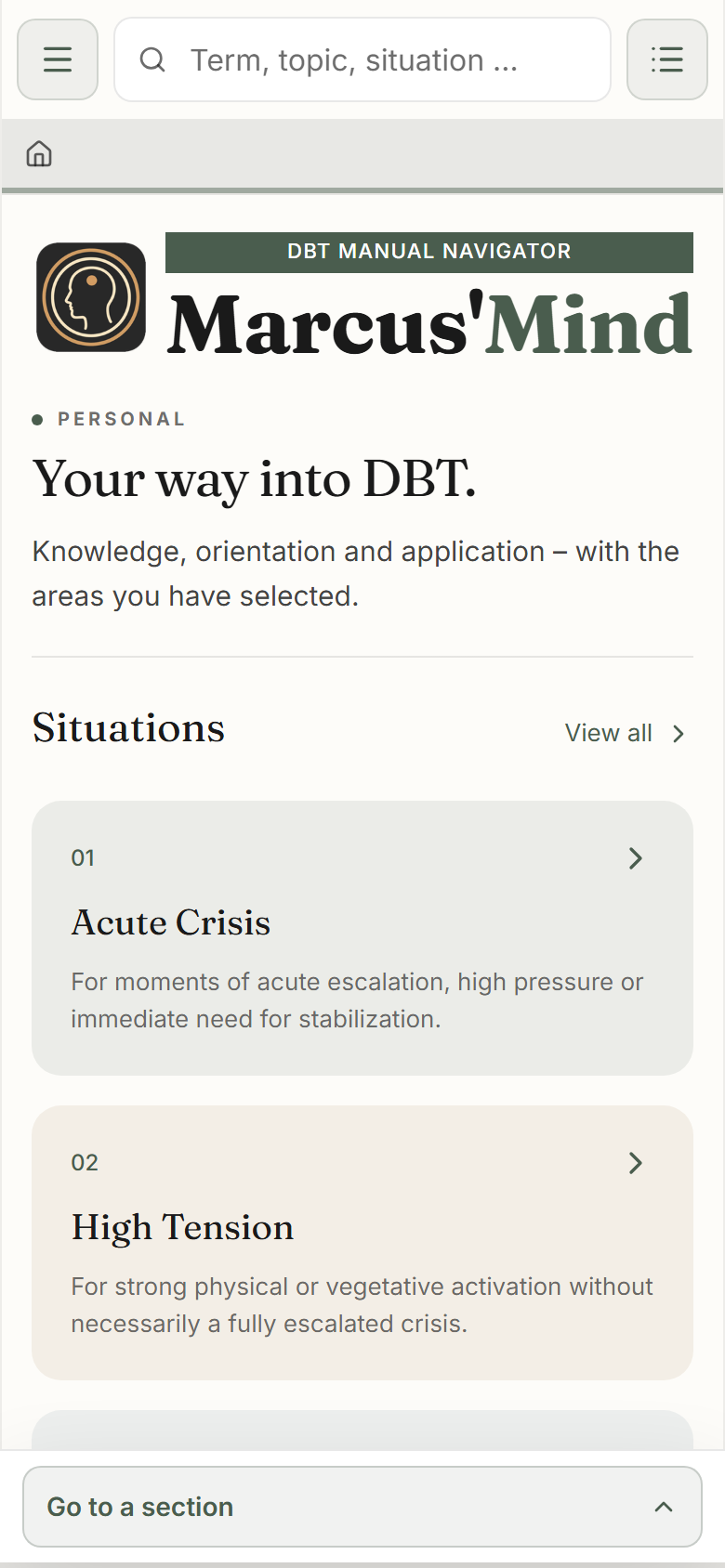
Marcus’Mind is a knowledge and orientation aid for Dialectical Behavior Therapy (DBT). You can look up terms, explore connections and read exercise guides. You do not need a user account.
Open the app
Open marcusmind.netlify.app/en/ in your browser. On Android you can also find Marcus’Mind on Google Play. On the website, “PWA – Progressive Web App” leads to the web app and “Google Play” leads to the Android app. Both open in a new tab.
Choose a way in
On the start page, “Start with my situation” leads to everyday starting points. Under “Get to know DBT” you begin with the basics. “Understand connections” opens topic areas; “Choose an exercise” leads to the exercises.
Open a piece of content
Tap the heading or the button of an entry. Read the explanation and follow a further link if you like. There is no prescribed order and no learning progress you have to complete.
Come back later
Mark interesting content pages with the star. You will find them again under “My bookmarks” on the start page. Chapter 8 explains the difference between bookmarks and lists.
Chapter 02
Finding your way around the interface
The header guides you through the app. On a smartphone, the menu, the search and the access to lists and bookmarks are particularly quick to reach.
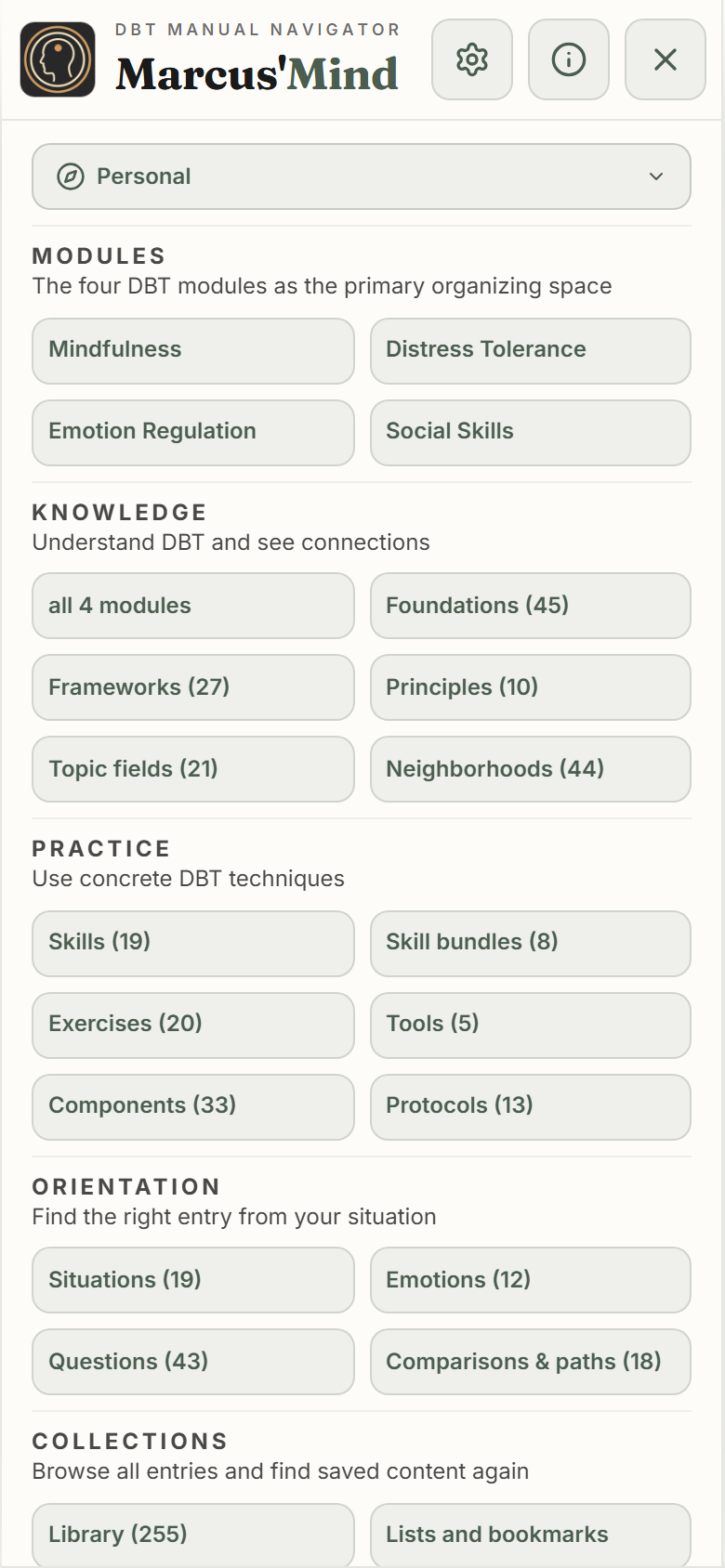
Open the menu
Tap the menu icon with the three lines at the top left. The menu shows the DBT modules and the areas “Knowledge”, “Practice” and “Orientation”. Choose an entry to open that area.
Tell Knowledge, Practice and Orientation apart
Under “Knowledge” you will find, among other things, foundations, topic fields and neighborhoods. “Practice” contains skills, skill bundles, exercises, tools and components. “Orientation” offers situations, questions and comparisons.
Get to the settings
At the top of the open menu you will find the gear icon for the settings. The information icon leads to “About the app”, where the professional sources are also listed. The “User guide” menu item opens the website outside the app.
Back to where you started
The path line below the header shows where you are. “Home” takes you to the start page. You can also use the back function of your browser. In the settings, “Back” returns you to the previous view.
Chapter 03
Start from your situation
You do not need to know a skill name. A situation or an everyday question can be the easier way in. From there, the app leads to explanations and related content.
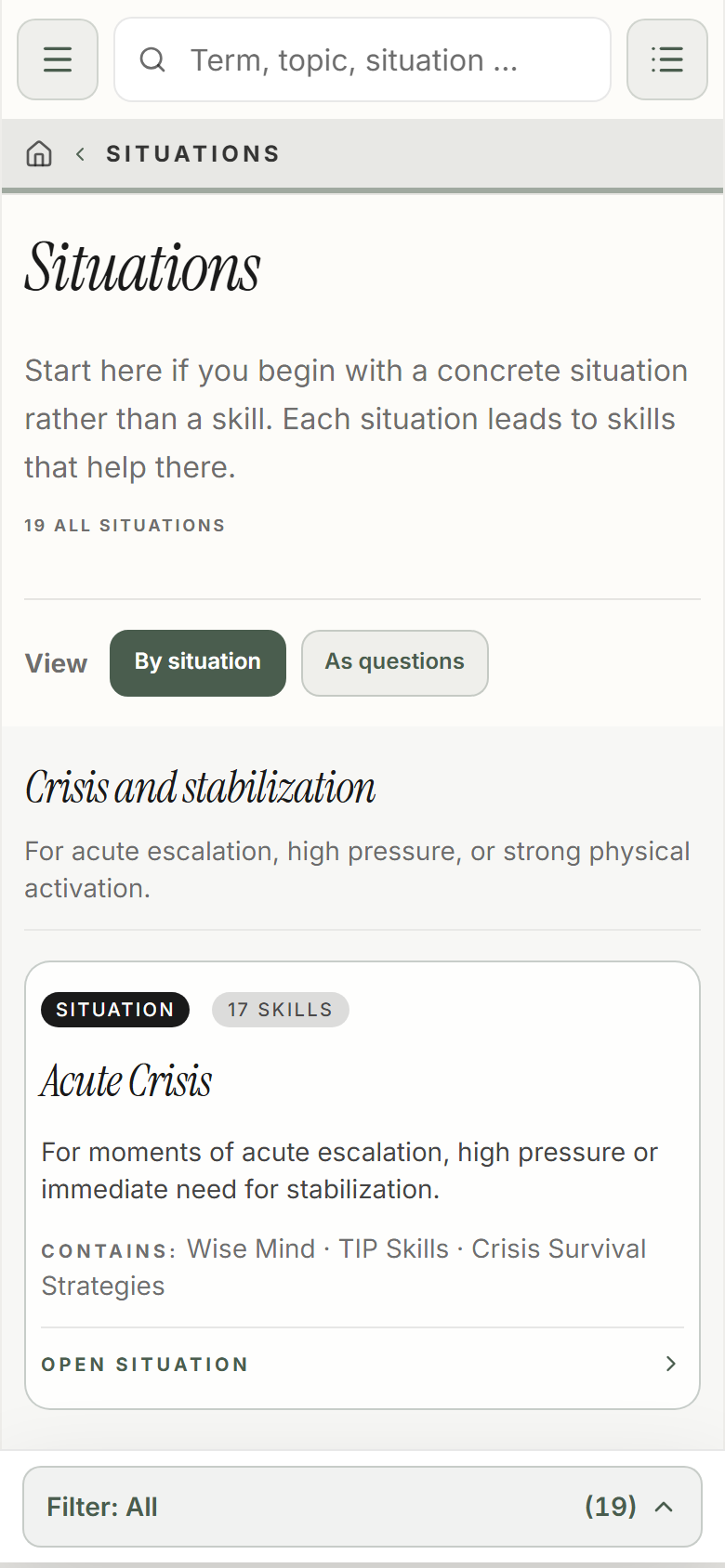
Open situations
On the start page, choose “Start with my situation”, or choose “Situations” under “Orientation” in the menu. The start page also offers direct examples such as “Conflict with others”.
Choose a description
Open a situation whose description fits your question. The choice is for orientation. It is not a diagnosis and does not assess your personal state.
Look at the next content
Read the overview and the options offered. Open a linked skill, an exercise or a decision path. The label shows whether you are moving to an explanation, a resource or a comparison.
Search through questions too
Under “Situative questions” you can begin with an everyday question phrased in full. “Guiding questions” help you find your way around DBT knowledge, for example with “Which skill helps me first?”.
Chapter 04
Find a term or a topic
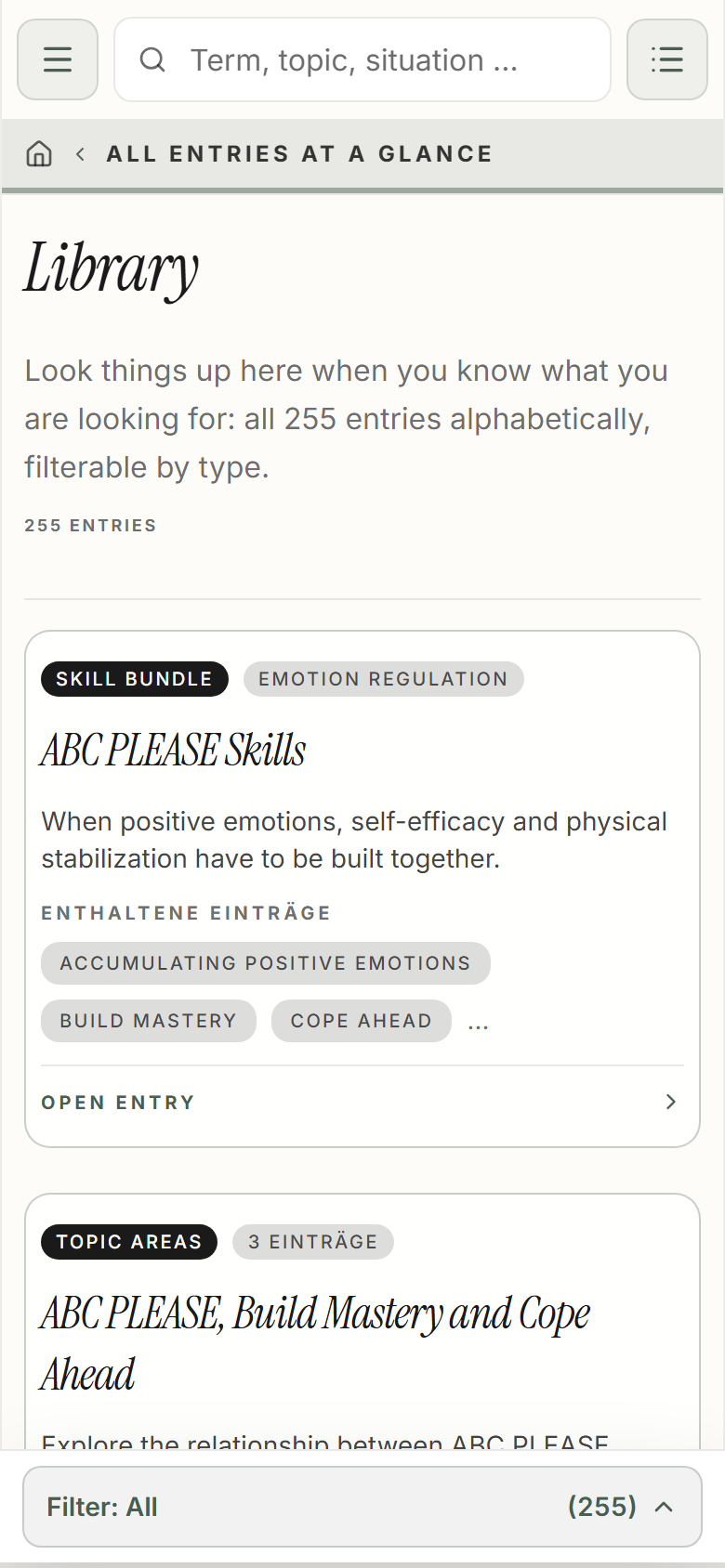
Search is helpful when you already have a word, a skill name or a topic in mind. The library also gives you an ordered overview of the content.
Use the search field
Tap the search field in the header. Enter a term, for example “DEAR MAN”. Wait for the results and open the entry that fits your question.
Play with the wording
If you find nothing suitable, use a shorter term or the well-known skill name. DBT acronyms such as DEAR MAN, GIVE, FAST and TIP stay as they are in every language.
Open the library
Open “Library” in the menu. There you can browse by type of content and use the search and filter options on offer. Check for active filters if the selection is unexpectedly small.
Place content correctly
A skill is a single ability. A skill bundle combines several steps; components are its parts. Exercises and tools show practical approaches. Foundations and frameworks explain the knowledge behind them.
Chapter 05
Read a content page
A content page connects the explanation with further ways in. Which additional sections are already expanded depends on your profile. The core explanation always stays accessible.
Start with the explanation
First read what the concept means. On longer pages, jump links such as “Explanation”, “Next step” and “Explore & connect” take you straight to the section you want.
Tell the next steps apart
A button such as “View resource” opens a tool; “View exercise” leads to an exercise. “Open decision path” leads to an ordered choice. These links show different ways of moving on.
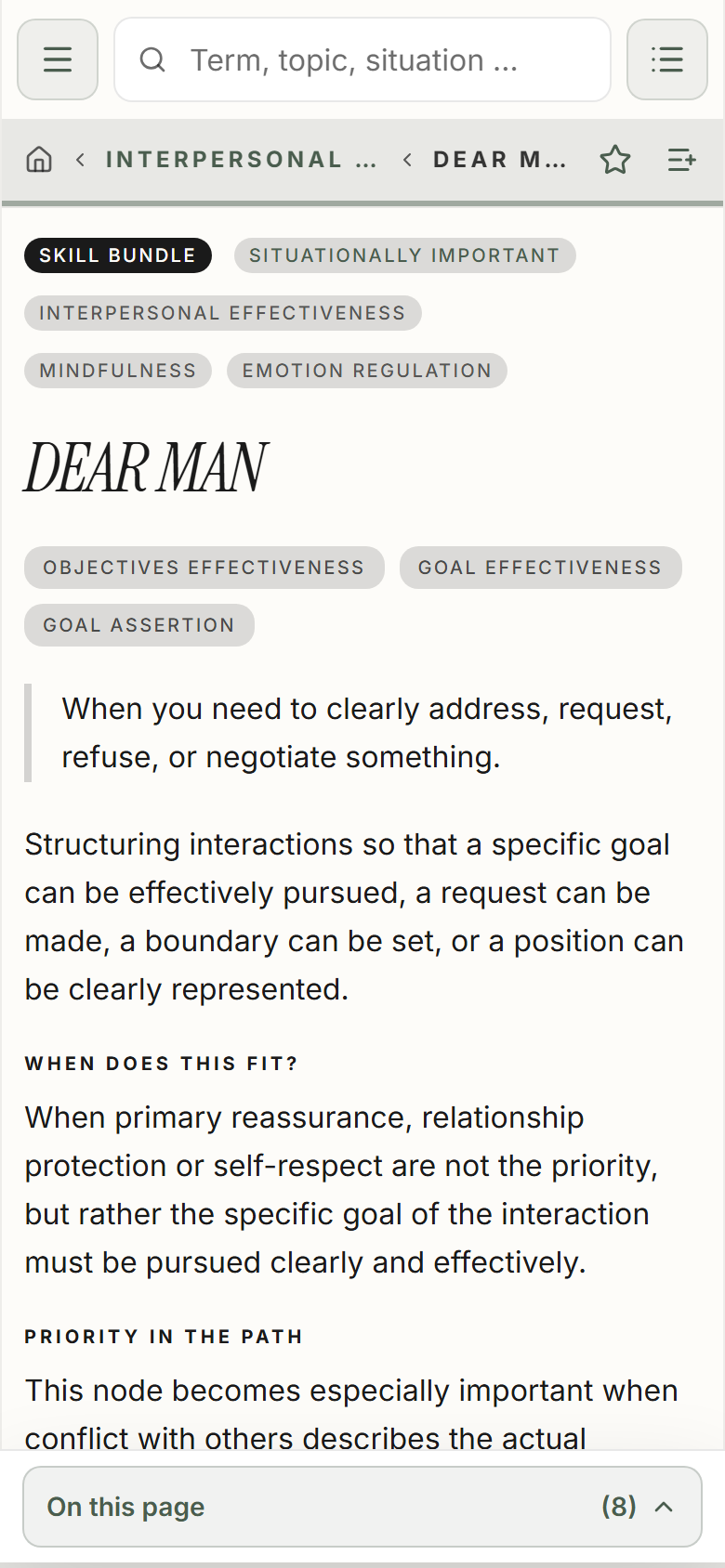
Explore a bundle
With DEAR MAN you can move from the whole format to individual parts such as “Describe” or “Express”. The single component explains one part; the bundle entry holds the overall context.
Go deeper and read the sources
Open additional sections via their headings. Depending on the content, you will find learning paths, comparisons, module references and sources. Not every piece of content has the same connections. Source notes within an explanation remain visible even when additional areas are collapsed.
Chapter 06
Understand differences and connections
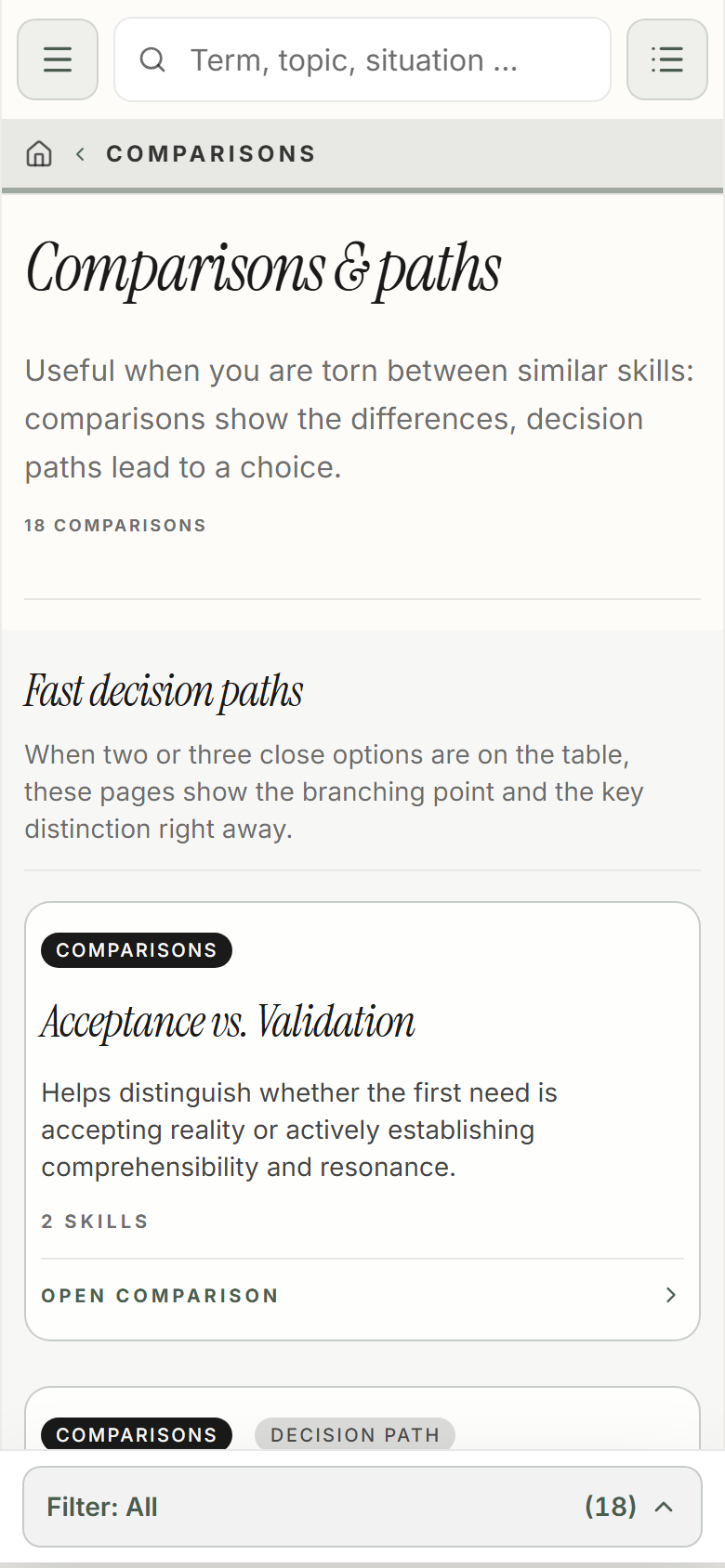
Similar terms are not automatically interchangeable. Marcus’Mind offers comparisons, decision paths, guiding questions, topic fields and neighborhoods as different aids to orientation.
Begin with a question
On the start page, use “Understand differences” or “Choose a next step”. In the menu you will find the shared overview under “Comparisons”. Choose a question that fits your concern.
Read the options and criteria
A specific comparison or decision page lists the options with their conditions. Read the differences first, then open the content you want to understand better.
Go deeper
Additional background texts and detail tables help with closer reading. Depending on your profile, they may be collapsed at first. The options and their necessary selection criteria stay visible.
Keep exploring a topic
Topic fields group related content. Neighborhoods show the professional context of a starting term. Use them when you want to learn more broadly rather than just tell two specific terms apart.
Chapter 07
Work with an exercise guide
In the redesign, dedicated exercise guides lead from reading to trying things out. They explain the working steps of a piece of content. They are not forms for entering or saving your answers.
Choose an exercise
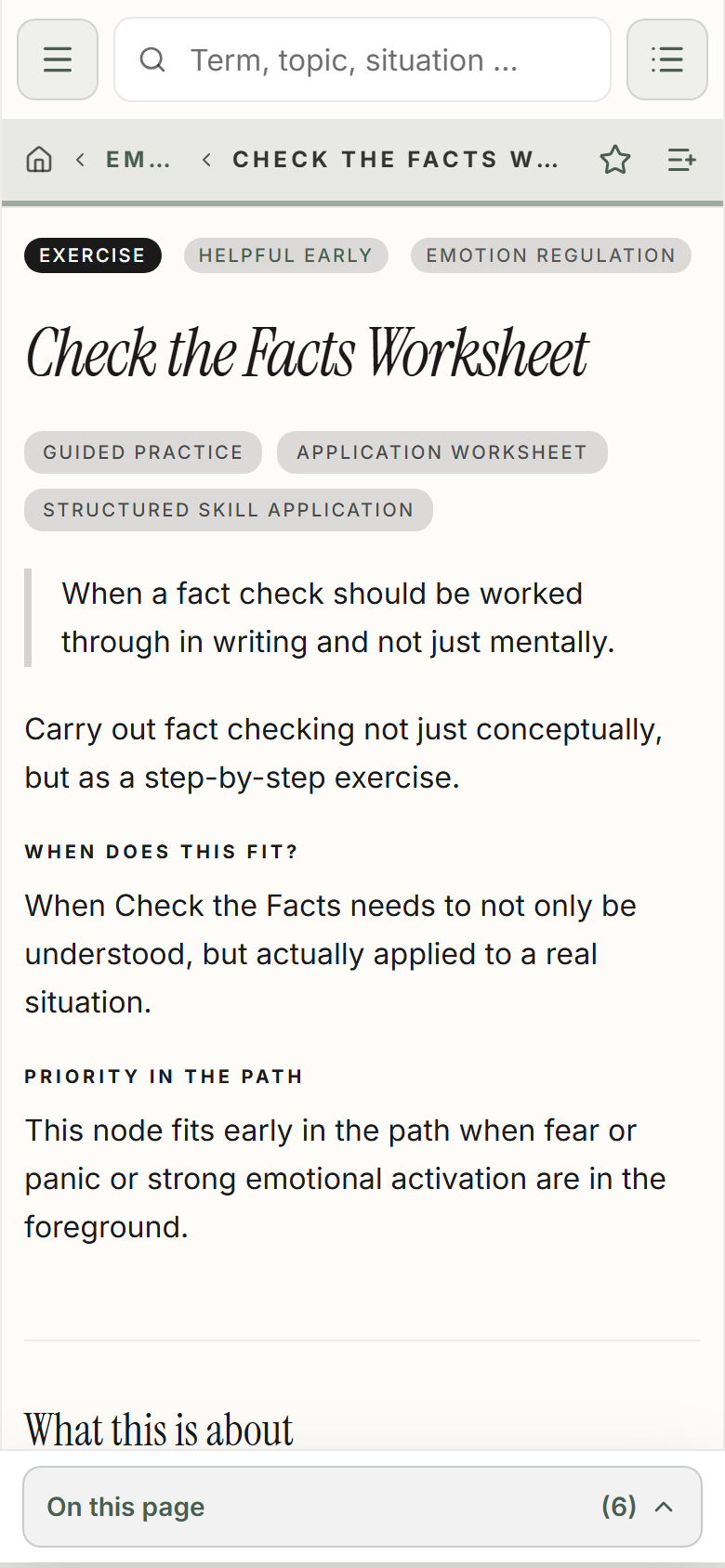
On the start page choose “Choose an exercise”, choose “Exercises” in the menu, or follow an exercise link on a content page. One example is the “Check the Facts worksheet”.
Read the introduction
First read what the exercise is about. Also check the notes on prerequisites, limits and sources. If you are in therapy, you can discuss the choice and use of an exercise there.
Go through the guide
Follow the steps shown at your own pace. Use paper or a document of your own if you want to write something down. The app offers no fillable worksheet here and does not save exercise answers.
Find the content again
Set a bookmark or save the page to a list of your own. That way you can pick up the same guide later, even if your notes are somewhere else.
Chapter 08
Remember what matters and find it again
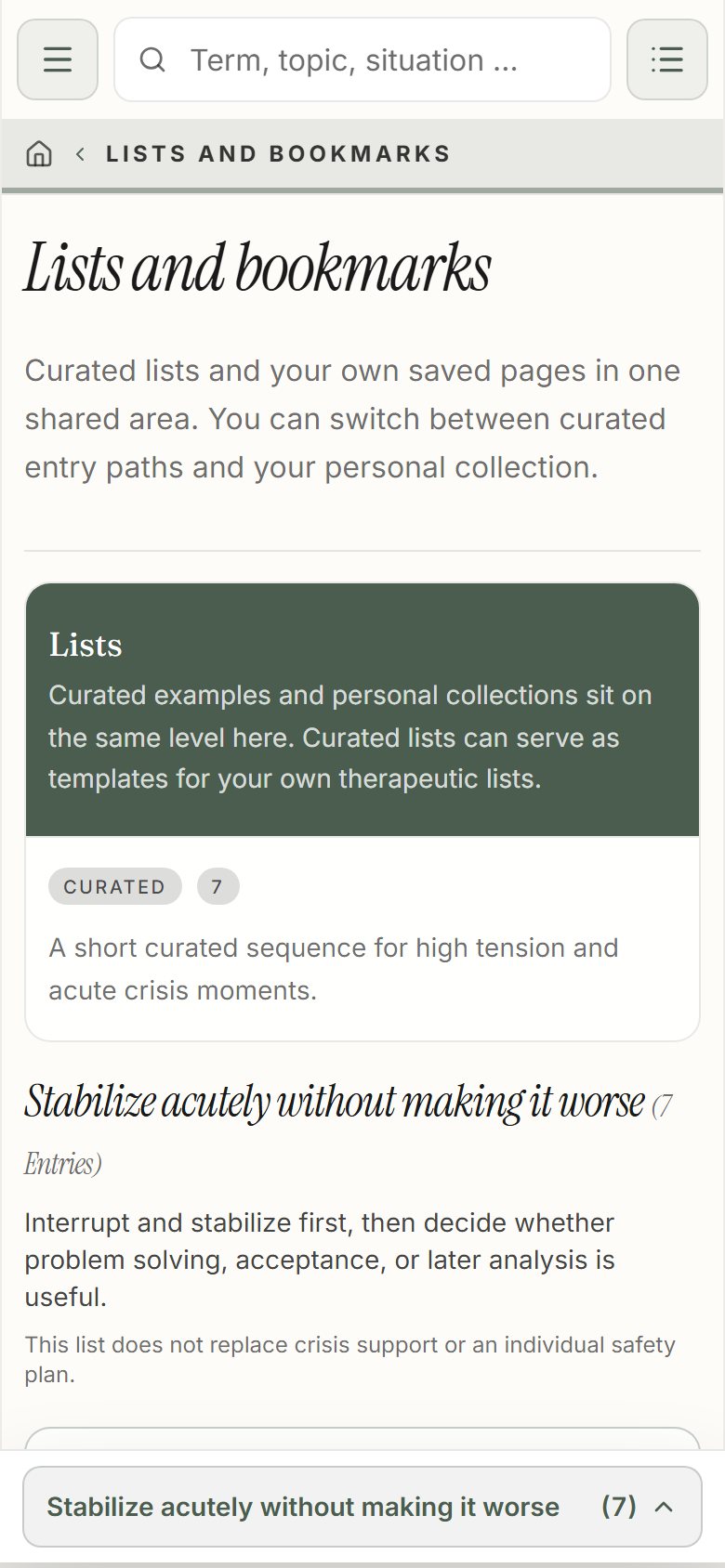
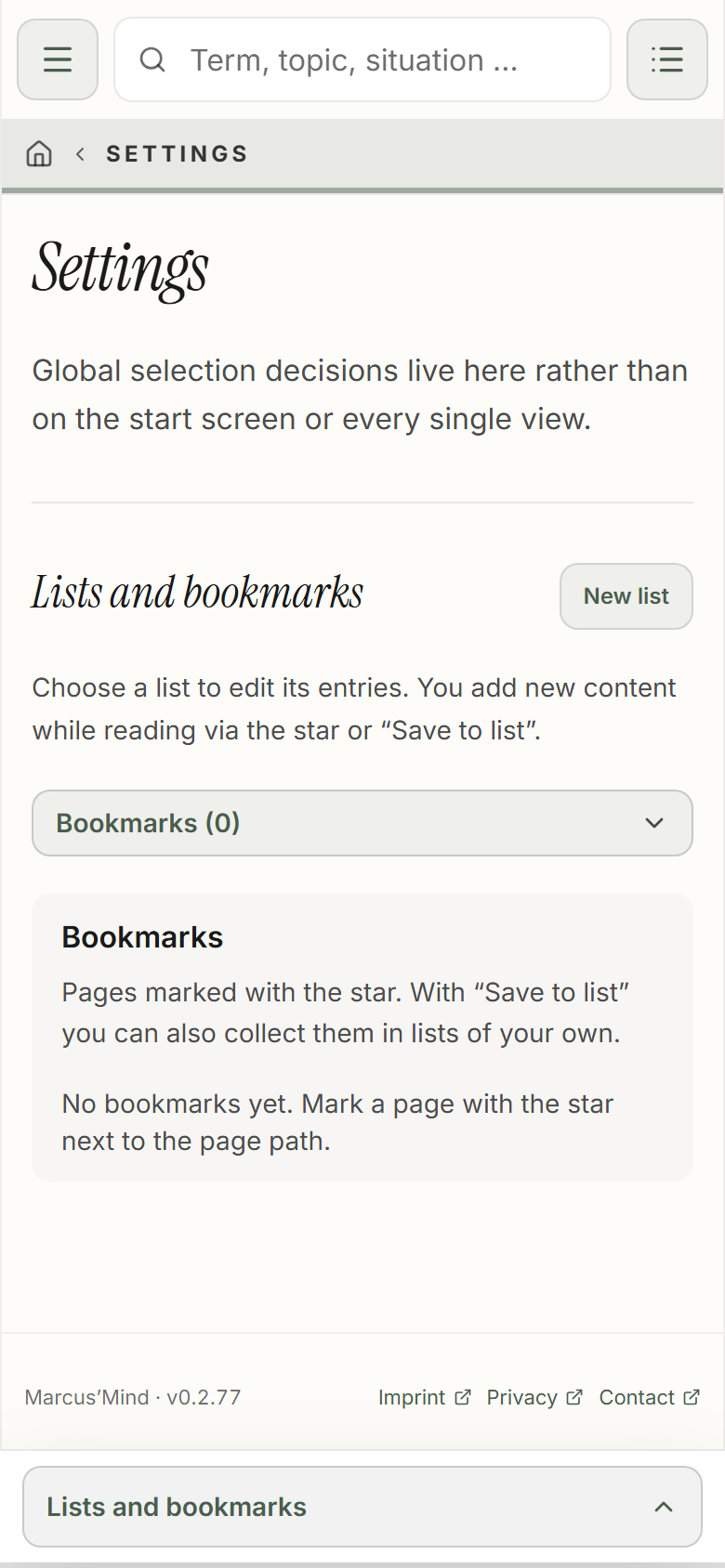
A bookmark remembers a piece of content. A list collects several pieces of content for one purpose. “Lists and bookmarks” is the place to read your collections and the ready-made selections.
Set a bookmark
Open a detail page. Tap the star next to the path line; the action is called “Add bookmark”. The highlighted star shows that the content is remembered. Tapping again removes the bookmark.
Open My bookmarks
Choose “My bookmarks” on the start page, or open “Lists and bookmarks” via the header or the menu. There, choose “My bookmarks” in the list selection.
Read a curated list
Choose one of the ready-made selections, for example “Introduction to DBT skills training”. The list arranges content in a reasoned sequence. Open individual entries to read their full explanation.
Tell your own lists apart
Lists you created yourself also appear in the selection. Read their content here. To create, rename and remove them, go to “Settings” and open “Lists and bookmarks”.
Chapter 09
Put together a list of your own
Lists of your own help, for example, when preparing a session or learning about a particular topic. You save references to existing content; you do not change the professional original texts.
Create a list
Open “Settings” and there “Lists and bookmarks”. Choose “New list”, enter a name such as “For the next conversation” and confirm with “Create list”.
Save from the content
Open the content page you want and choose “Save to list”. Choose an existing list or create a new one. Confirm your choice. For simply remembering something, the bookmark star is still enough.
Edit the list
Under “Lists and bookmarks” you choose your own list. There you can rename it and remove individual entries. “Open list” takes you to the readable overview. Ready-made lists stay unchanged.
Prepare a session
“Prepare a session” can fill a preparation list from your current bookmarks. Read the confirmation: filling it again replaces the previous preparation with the current bookmarks. Before deleting a list of your own, think about whether you still need the collection.
Chapter 10
Choose a profile and your personal view
Profiles change the focus of your view. They do not change the professional explanations and do not lock any content. Three profiles have fixed settings; “For myself” is your customizable profile.
Choose a profile
Open the settings and the “Profile” area. “Under stress” emphasizes situations and first steps. “For learning” puts modules and learning paths first. “For professionals” gives more weight to comparisons, connections and sources.
Use For myself
Choose “For myself” if you want to shape the view yourself. At first all functions are on and additional areas are open. You can also switch via the profile selection in the menu.
Adapt the start page
Open “My view”. Under “Start page” you decide which of the offered sections appear there. Without a check mark only the start page section is dropped; the area stays reachable through the menu.
Set how sections open
Under “Content pages” you decide whether additional exercises, learning paths, comparisons, connections and sources are open straight away. Without a check mark they start collapsed. The complete explanation, necessary guide steps and comparison options stay visible.
Chapter 11
Adjust readability and language
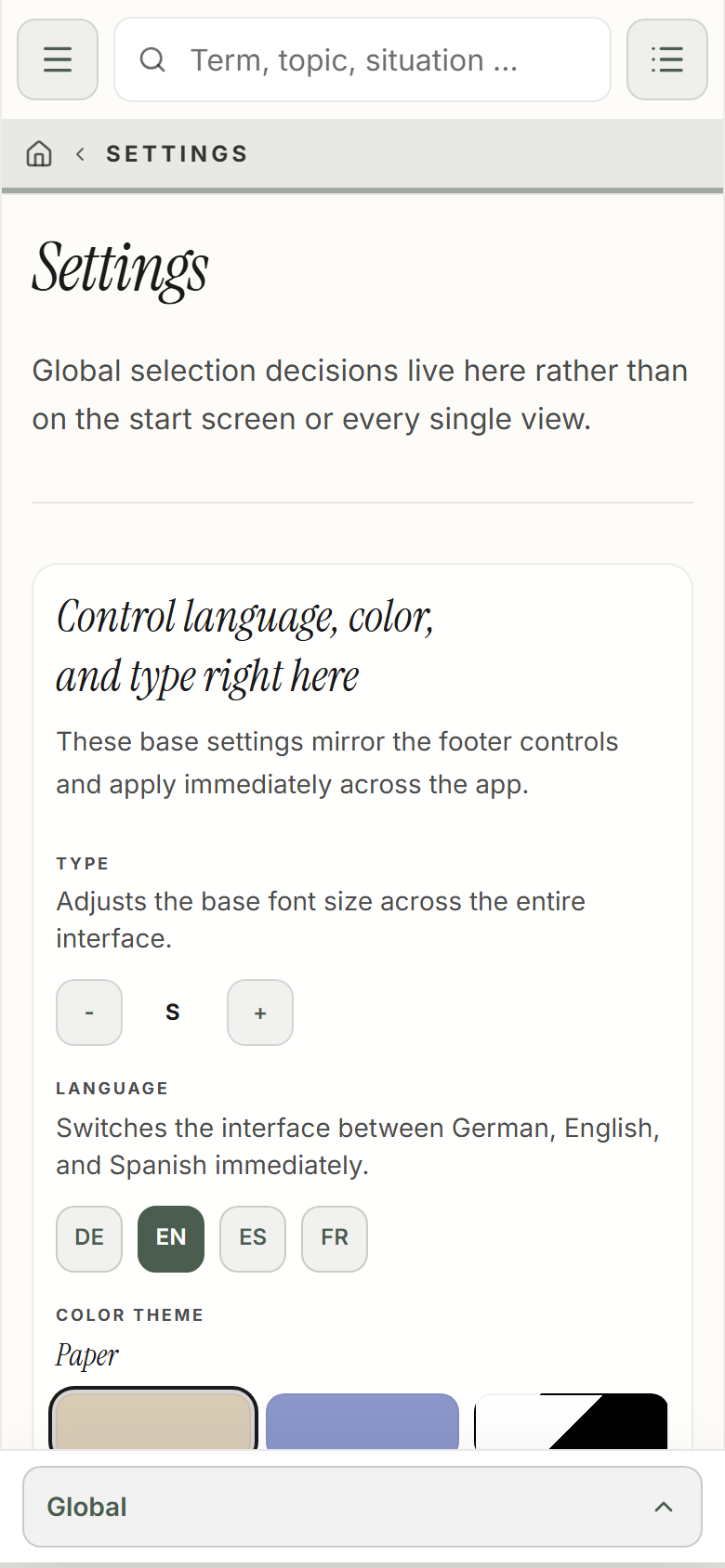
Under “Display” you adapt the app to your reading habits. The setting stays stored locally. Changing the display changes neither the content nor your bookmarks.
Open the display settings
Open “Settings” via the gear icon in the menu and choose “Display”. Here you will find the options for language, color theme and type size.
Choose a language
Choose the language you want from the options offered: German, English, Spanish or French. This guide describes the English names. The website and this guide are available in all four languages.
Adjust color theme and type
Choose one of the color themes offered and enlarge or reduce the type with the buttons provided. Afterwards check readability on a content page. At the end of the adjustable range, the button in question is disabled.
Return to reading
Use “Back” in the settings. If additional information is missing on a page, open the corresponding sections or check their opening behavior under “My view”.
Chapter 12
On the go, offline and with local data
Marcus’Mind can be used in the browser and as an Android app. Both ways work without a user account. Personal settings, bookmarks and lists are stored locally; there is no cloud synchronization of its own.
Install on Android
Open the Google Play link on the website or search for Marcus’Mind on Google Play. Install the app through the store. You also receive updates there. This guide describes the current redesign; a store update may arrive later than that.
Add the web app to the home screen
Open the web app, not the information website. If your browser supports installation, use “Install app” or “Add to home screen” in the browser menu. The exact wording depends on device and browser.
Check offline availability
The Android app contains its app files. The web app caches files; so not every piece of content you have never opened is automatically available offline. Open the pages you need beforehand and check them in airplane mode. External websites and store downloads need a connection.
Handle local data with care
Deleting website data or the Android app storage, or uninstalling, can remove bookmarks, lists and settings. The app offers no automatic cloud restore here. Note down important links outside the app before changing devices.
If a page does not load
Check your internet connection and reload the page. If only an external link is affected, its provider may be the cause. If problems persist, use the contact option on the website and state the page, device, browser and the error you observed. Do not delete local data hastily.
Chapter 13
Sources, limits and the sister apps
Marcus’Mind aims to make knowledge accessible and its origin traceable. This user guide explains the interface. It is not itself a DBT training manual and not a therapeutic guide.
Read the sources on the content
Open the source notes on a content page. The details help you trace the origin and context of a concept. Further reading does not replace the explanation of the specific app function.
Open About the app
The information icon in the menu leads to “About the app”. There you will find the professional context, the source books and further references. Among others, the app draws on Linehan’s DBT Skills Training Manual and Handouts and Worksheets as well as the workbook by McKay, Wood and Brantley.
Tell the sister apps apart
Marcus’Mood supports naming feelings and recognizing your own patterns over time. Marcus’Mind opens up knowledge and connections. Marcus’Mend offers a practice space for skills and your own wording. The apps are independent and do not synchronize their data automatically.
Report questions or errors
Use “Contact” in the footer of the website for usage questions, error reports or professional feedback. Describe the content concerned and the steps that led to the problem. Do not send any health data. The contact form is not a crisis or emergency channel.
Limits of the service
Marcus’Mind is not diagnosis, therapy or crisis care, and not an official app of the authors named. Being guided by professional literature is no proof of the clinical effectiveness of this app. In acute danger, contact your local emergency number; in the EU, 112.